Unity Editor Essentials
The Unity Editor is the main workspace where you build, organize, and test your game. It is made up of multiple windows (also called tabs or panels), each serving a specific purpose.
Unity Interface Overview
Below is an example of Unity’s Default Layout: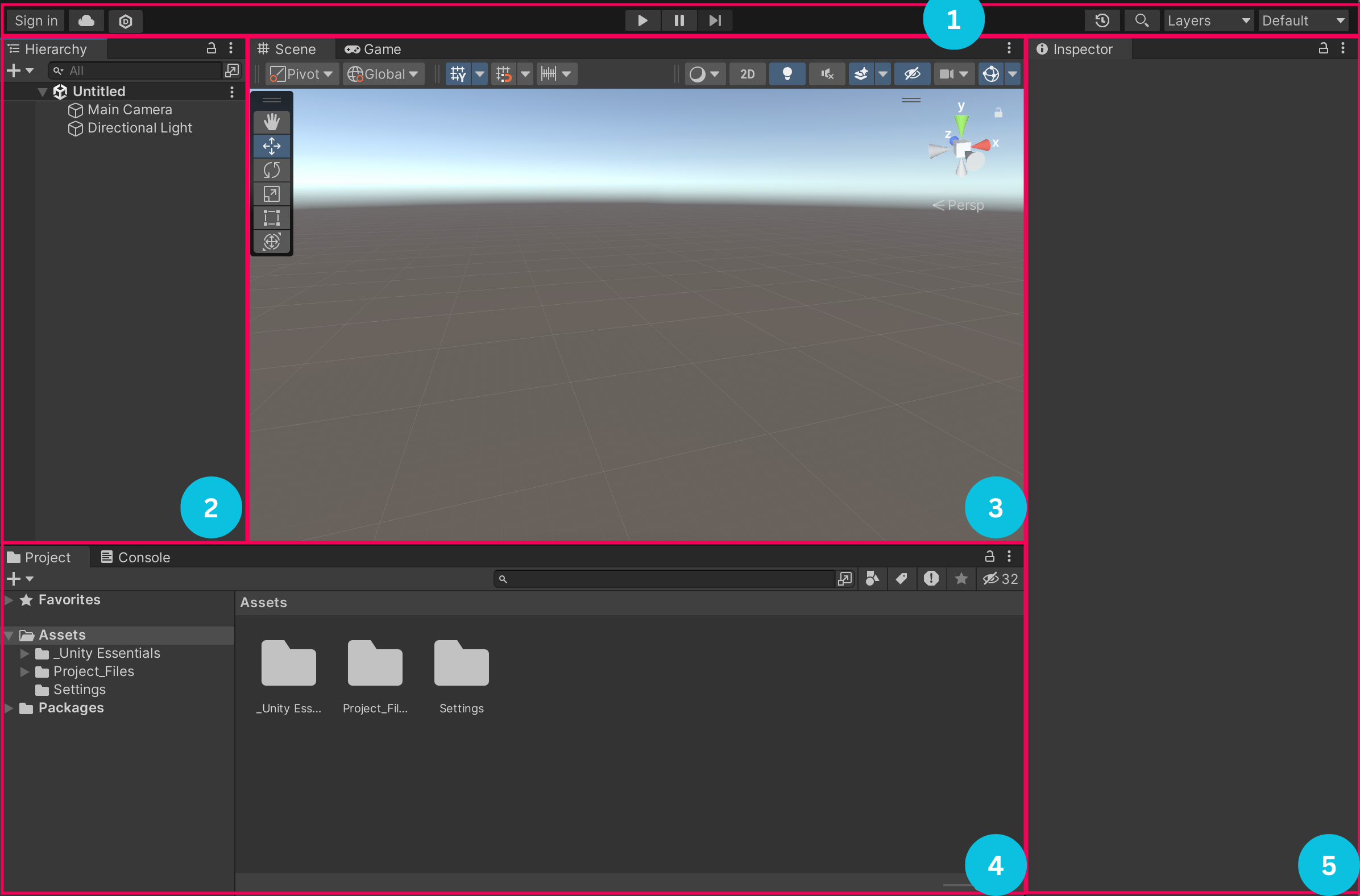
Different editor layouts can be selected from the top-right corner of the editor in the area marked (1). The dropdown button labeled Default allows you to switch between preset layouts or save your own custom layouts.
Unity’s interface is composed of several main regions:
(1) Toolbar
Located at the top. Contains Play, Pause, and Step buttons, layout selection, Layers menu, and search. This is also where you control entering and exiting Play Mode.
(2) Hierarchy Window
Shows all GameObjects currently inside the open Scene. Objects are displayed in a tree structure. Parent GameObjects contain other GameObjects, which are referred to as child GameObjects.
(3) Scene / Game View Area
The Scene view is where you visually build and edit your world.
The Game view shows what the player’s camera sees when the game is running.
(4) Project & Console Area
Used for browsing Assets and viewing console messages.
(5) Inspector Window
Displays and edits properties and components of the currently selected object or asset.
Project Window (Project Tab)
The Project window displays all files that belong to your project.
This includes scripts, scenes, models, textures, materials, prefabs, audio, and more.
It represents the actual folder structure on your disk.
Organizing this window using folders is important to keep the project clean.
Assets exist here even if they are not placed into a scene.
Assets Folder
The Assets folder is the main container for all content used in your game.
Anything placed inside the Assets folder becomes available inside Unity.
Typical subfolders include:
-
Scripts
-
Scenes
-
Models
-
Materials
-
Textures
-
Prefabs
Only assets inside this folder can be used in the project.
Console Window (Console Tab)
The Console shows messages generated by Unity and your scripts.
Three common message types:
-
Logs - general information
-
Warnings - potential issues
-
Errors - problems that usually stop code from running
When a script has an error, Unity displays it here. Clicking the message highlights the line in the script.
Regularly checking the Console is essential for debugging.
Hierarchy Window
The Hierarchy lists all GameObjects in the current Scene.
Objects can be dragged onto other objects to create parent-child relationships.
Moving a parent also moves its children.
Deleting an object from the Hierarchy removes it from the scene, but does not delete the original asset from the Project window.
The Hierarchy represents what exists in the scene right now.
Inspector Window
The Inspector shows detailed information about the selected object or asset.
For GameObjects:
-
Displays a list of components attached to the object
-
Each component contains editable properties
For Assets:
-
Displays import settings or asset-specific options
You can add new components using the Add Component button.
The Inspector is where most configuration work happens.
GameObjects & Components
A GameObject is an empty container.
A Component is a feature attached to a GameObject.
Examples of components:
-
Transform
-
Mesh Renderer
-
Collider
-
Rigidbody
-
Script
GameObjects gain behavior only through their components.
Instead of creating complex object types, Unity encourages building behavior by combining components.
Scene View Navigation (Moving Around the Scene)
Common ways to navigate:
-
Right Mouse Button + WASD → Fly camera
-
Mouse Wheel → Zoom
-
Middle Mouse Button → Pan
-
Hold Alt + Left Mouse → Orbit
-
Press F → Focus selected object
Efficient navigation is usefull for fast level design.
Play mode
Press the Play button to run the game.
While in Play Mode:
-
The game is simulated
-
You can test controls and gameplay
When Play Mode stops:
-
Most changes made during Play Mode are discarded
Use Play Mode only for testing, not permanent editing.
Saving Scenes (*)
Scenes must be saved manually.
-
Save Scene: Ctrl + S / Cmd + S
-
Save As: File → Save As
Unsaved scenes show an asterisk (*) next to their name.
Always save scenes frequently to avoid losing work.